AWS Resource Explorer's multi-account search lets you find resources across every account in your AWS Organization from a single pane of glass - no agents, no third-party tools, no cost. It's genuinely useful, but comes with sharp edges: only 1 delegated administrator allowed, removing that admin deletes all multi-account views, search results are eventually consistent (up to 36 hours for indexing, 24 hours for account removals), and you're capped at 5 search queries per second per Region. This post covers the full setup, the architecture decisions you need to make, and every gotcha I've found so you don't learn them the hard way.
What Is Resource Explorer?
AWS Resource Explorer is a free, fully managed service that indexes your AWS resources and lets you search for them using metadata like tags, resource types, ARNs, and IDs. Think of it as a search engine for your AWS infrastructure.
Originally launched in November 2022 as a single-account, single-Region tool, it has expanded significantly:
- November 2023 - Multi-account search via AWS Organizations
- October 2025 - Automatic enablement (no setup required for basic search)
- Throughout 2025 - Hundreds of new resource types added (29 in January, 32 in April, 41 in May, 120 in August, 47 in October)
As of late 2025, Resource Explorer supports hundreds of resource types across virtually every AWS service, and it's available in 40+ Regions.
Why Multi-Account Search Matters
If you're running a multi-account strategy (and you should be - it's an AWS best practice), finding resources becomes a real problem:
- "Which account is that RDS instance in?" - Someone deployed a database three months ago and nobody remembers where
- "Do we have any untagged resources?" - Compliance needs a report across all accounts
- "What's running in ap-southeast-1?" - Someone spun up resources in Singapore and you need to find them
- "How many Lambda functions do we have?" - FinOps wants an inventory
Before Resource Explorer, the options were: AWS Config advanced queries (complex and costs money), third-party CMDB tools (expensive), or manually logging into each account (painful). Resource Explorer gives you a Google-like search bar across your entire Organization for free.
How It Works: Index Architecture
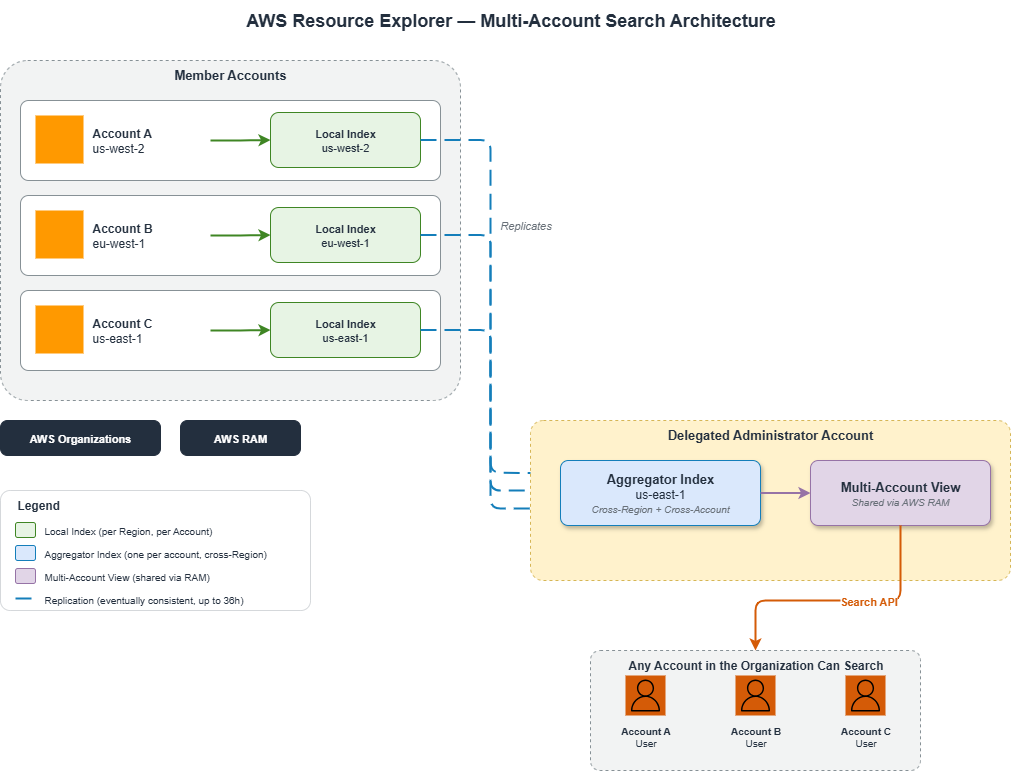
Resource Explorer uses a two-tier index architecture that's important to understand before you set it up:
Local Indexes
Each Region in each account can have a local index. This index catalogs all supported resources in that specific Region for that specific account. Local indexes are created automatically when you enable Resource Explorer in a Region.
Aggregator Index
One Region per account can be designated as the aggregator Region. The aggregator index replicates data from all local indexes across all Regions into a single searchable index. This is what enables cross-Region search - you query the aggregator, and it has a copy of everything.
Each account can have exactly one aggregator index. If you change the aggregator Region, the old aggregator is demoted to a local index and a new aggregator is created. If an account already has an aggregator in a different Region and you use Quick Setup, it will be automatically replaced with the new Region - without warning.
Multi-Account Views
For multi-account search, you create views scoped to your Organization or specific OUs. These views live in the aggregator Region of the management account (or delegated administrator account) and can be shared with other accounts via AWS Resource Access Manager (RAM).
Here's the flow:
Prerequisites
Before enabling multi-account search, you need:
- AWS Organizations - Multi-account search requires an Organization. This isn't optional.
- Trusted access enabled - Resource Explorer needs trusted access in Organizations to list and access member accounts.
- Service-linked role - The
AWSServiceRoleForResourceExplorerservice-linked role must exist in the administrator account. - Opt-in Regions - If you're using opt-in Regions (like
af-south-1,ap-east-1, etc.), the management account must be opted in to those Regions. - IAM permissions - The user setting this up needs permissions for Organizations, Resource Explorer, RAM, and IAM (for the service-linked role).
Setup: Two Approaches
Option 1: Quick Setup (Recommended for Most)
AWS Systems Manager Quick Setup automates the entire deployment using CloudFormation StackSets under the hood:
- Open the Systems Manager Quick Setup console
- Select Resource Explorer as the configuration type
- Choose your aggregator index Region (pick the Region closest to your team or where most resources live)
- Choose targets: entire Organization or specific OUs
- Click Create
Quick Setup deploys CloudFormation stacks to each target account and Region, creating local indexes everywhere and an aggregator index in your chosen Region.
50,000 CloudFormation stack limit - Quick Setup deploys one stack per account per Region. If you have 500 accounts across 20 Regions, that's 10,000 stacks. Large Organizations should deploy at the OU level in smaller batches.
Management account excluded - Quick Setup does NOT deploy to the management account. You must manually set up Resource Explorer in the management account via the Resource Explorer console.
Existing aggregator indexes get replaced - If a target account already has an aggregator in a different Region, Quick Setup silently replaces it with the new Region.
Option 2: Manual Setup
For more control, you can set up each piece manually:
Step 1: Enable Trusted Access
aws organizations enable-aws-service-access \
  --service-principal resource-explorer-2.amazonaws.com
Step 2: Create the Service-Linked Role
aws iam create-service-linked-role \
  --aws-service-name resource-explorer-2.amazonaws.com
Step 3: Register a Delegated Administrator (Recommended)
aws organizations register-delegated-administrator \
  --account-id 111122223333 \
  --service-principal resource-explorer-2.amazonaws.com
Step 4: Enable Resource Explorer in Each Account/Region
In each account, create an index in each Region you want searchable:
# Create a local index
aws resource-explorer-2 create-index --type LOCAL --region us-east-1

# Designate one Region as the aggregator
aws resource-explorer-2 update-index-type --arn <index-arn> --type AGGREGATOR --region us-east-1
Step 5: Create a Multi-Account View
aws resource-explorer-2 create-view \
  --view-name "org-wide-view" \
  --scope "arn:aws:organizations::123456789012:organization/o-abc123" \
  --region us-east-1
Step 6: Share the View via RAM
aws ram create-resource-share \
  --name "resource-explorer-org-view" \
  --resource-arns "arn:aws:resource-explorer-2:us-east-1:111122223333:view/org-wide-view/..." \
  --principals "arn:aws:organizations::123456789012:organization/o-abc123"
The Delegated Administrator: Handle With Care
AWS strongly recommends using a delegated administrator instead of the management account for day-to-day Resource Explorer operations. This follows the principle of least privilege for the management account. However, the delegated admin has some critical constraints:
Only 1 allowed. Resource Explorer supports exactly one delegated administrator per Organization. You cannot have a backup or distribute admin duties across multiple accounts.
Removing = destruction. If you remove or change the delegated administrator, all multi-account views created in that account are permanently deleted. This is not recoverable. If other accounts were using shared views from this admin, their search capability breaks immediately.
Account removal = same thing. If the delegated admin account is removed from the Organization (even accidentally), all multi-account views are deleted.
Best practice: Use a dedicated, stable "shared services" or "tooling" account as the delegated administrator. Never use a workload account or sandbox account that might be decommissioned.
Search Capabilities and Syntax
Once set up, you can search using free-form text or structured queries:
# Find all EC2 instances
aws resource-explorer-2 search \
  --query-string "resourcetype:ec2:instance" \
  --view-arn "arn:aws:resource-explorer-2:us-east-1:111122223333:view/org-wide-view/..."

# Find resources by tag
aws resource-explorer-2 search \
  --query-string "tag:Environment=production"

# Find resources in a specific Region
aws resource-explorer-2 search \
  --query-string "region:us-west-2 resourcetype:rds:db"

# Free-form text search
aws resource-explorer-2 search \
  --query-string "my-application-name"
You can also scope views to specific accounts (added in 2025), which lets you create targeted views for specific teams or business units rather than always searching the entire Organization.
View Sharing: The Permission Model
Sharing views across accounts requires two layers of permissions:
- Resource-based policy on the view itself (in the sharing account) - grants the consuming account access to the view
- Identity-based policy in the consuming account - grants individual users/roles permission to call
resource-explorer-2:Searchandresource-explorer-2:GetViewon the shared view ARN
Both are required. A resource-based policy alone won't grant access to individual users in the consuming account. AWS RAM handles the resource-based policy side automatically, but you still need to set up identity-based policies in each consuming account.
// Identity-based policy for consuming account users
{
  "Version": "2012-10-17",
  "Statement": [
    {
      "Effect": "Allow",
      "Action": [
        "resource-explorer-2:Search",
        "resource-explorer-2:GetView"
      ],
      "Resource": "arn:aws:resource-explorer-2:us-east-1:111122223333:view/org-wide-view/*"
    }
  ]
}When you share a view via AWS RAM with the Organization, RAM automatically grants and revokes access as accounts join or leave the Organization. You don't need to manually update the share when onboarding new accounts.
The Good
Let's talk about what Resource Explorer multi-account search does well:
- Free. Completely free. No per-resource charges, no per-query charges, no per-account charges. The only cost is the underlying API calls Resource Explorer makes on your behalf during indexing, which are negligible.
- No agents. Unlike third-party CMDB tools, there's nothing to install. It uses AWS APIs and CloudTrail events to discover resources automatically.
- Automatic updates. When resources are created, modified, or deleted, the indexes update within minutes (for the local index) via CloudTrail event processing.
- Native console integration. Unified Search in the AWS console uses Resource Explorer, so your search results appear right in the console search bar.
- Tag-based search. Finally, a way to search by tags across all accounts and Regions without writing custom scripts or using AWS Config queries.
- Scoped views. You can create views scoped to specific accounts, OUs, or the entire Organization, and share them with the right teams.
- Growing resource coverage. AWS has been aggressively adding supported resource types throughout 2025, with hundreds of new types added across the year.
- Quick Setup automation. Systems Manager Quick Setup makes the initial deployment across hundreds of accounts trivial.
The Bad
Here's where it gets real:
- Eventually consistent - very eventually. Initial indexing can take up to 36 hours to fully replicate across the service. New resources appear in the local index within minutes, but replicating to the aggregator index takes longer. If you're looking for something just created, it might not be there yet.
- Account removal takes up to 24 hours. When an account leaves the Organization or opts out of a Region, their resources remain visible in search results for up to 24 hours. This could be a compliance concern - showing resources from an account that's no longer part of your Organization.
- Search returns max 1,000 results. If your query matches more than 1,000 resources, you only get the top 1,000 sorted by relevancy. You must add filters to narrow results. There's no pagination beyond this limit for the
SearchAPI (though theListResourcesAPI supports pagination). - 5 queries per second rate limit. The
SearchAPI is limited to 5 requests per second per Region. The non-search APIs (CreateView, ListIndexes, etc.) are limited to 3 per second. This makes it unsuitable for automated inventory scripts that need to run at scale. - Only 10 views per Region. You can create a maximum of 10 views in any given Region, and this quota cannot be increased. In a large Organization with many teams, this can be constraining.
- No resource configuration data. Resource Explorer indexes metadata (ARN, tags, resource type, Region) but NOT configuration details. You can't search for "EC2 instances with public IPs" or "S3 buckets without encryption." For that, you still need AWS Config.
- No cost data. Resource Explorer tells you what exists, not what it costs. For FinOps use cases, it's a starting point but not a complete solution.
The Gotchas
These are the sharp edges that will cut you if you're not careful:
1. Delegated Admin Removal Deletes Views
Worth repeating because it's the most dangerous one. If your delegated administrator account is removed from the Organization, decommissioned, or you change the delegated admin to a different account, every multi-account view created in that account is permanently deleted. Every account that was using those shared views loses search access immediately. There's no undo.
2. Quick Setup Silently Replaces Aggregators
If a member account already has an aggregator index in us-west-2 and your Quick Setup targets us-east-1 as the aggregator Region, the account's existing aggregator is silently replaced. Any views that depended on the old aggregator may break. Quick Setup doesn't warn you about this.
3. Tags Not in View = Not Searchable
When creating a view, you can optionally include or exclude tag keys. If you create a view without including tags, users cannot search by tag keys or values through that view. This is a common misconfiguration - always include IncludedProperty with Name: tags when creating views if you want tag-based search.
# Make sure to include tags in your view
aws resource-explorer-2 create-view \
  --view-name "org-wide-view" \
  --scope "arn:aws:organizations::123456789012:organization/o-abc123" \
  --included-properties Name=tags \
  --region us-east-1
4. Suspended Accounts Need Manual Re-Enablement
If a member account is suspended while the administrator is trying to enable it, the status becomes "Account Suspended." After the account is reactivated (within the 90-day suspension window), the administrator must manually re-enable the account in Resource Explorer. It doesn't automatically recover.
5. Account Closure Has a 90-Day Window
When an account is closed, Resource Explorer retains the resource data for 90 days. After that, it's permanently deleted. If you need long-term records of what was in a closed account, set up an EventBridge rule to archive Resource Explorer data to S3 before the 90-day window expires.
6. Partial Results vs. Complete Results
Since the October 2025 automatic enablement, there are now two tiers of search results:
- Partial results - Available with
AWSResourceExplorerReadOnlyAccessonly. Includes all tagged resources but only untagged resources created after October 6, 2025. No historical untagged resource data. - Complete results - Requires
iam:CreateServiceLinkedRolepermission. Includes all supported resources regardless of when they were created.
If your users only have read-only access, they'll get partial results and may think resources are missing. This is especially confusing for untagged resources that existed before October 2025.
7. Unified Search CloudTrail Noise
If users don't have Resource Explorer permissions but use the AWS console, Unified Search generates 403 Access Denied errors in CloudTrail for resource-explorer-2:ListIndexes. This creates noise in your CloudTrail logs and can trigger false alarms in security monitoring tools. Either grant all console users AWSResourceExplorerReadOnlyAccess or filter these events in your monitoring.
8. Terraform Provider Gap
As of early 2026, the AWS Terraform provider does not fully support multi-account view scoping. You can create basic views with aws_resourceexplorer2_view, but the scope parameter for Organization/OU-scoped views is still an open enhancement request. If you're managing Resource Explorer as IaC, you may need to use CloudFormation or the CLI for the multi-account view pieces.
Quotas at a Glance
| Resource | Limit | Adjustable? |
|---|---|---|
| Views per Region | 10 | No |
| Aggregator indexes per account | 1 | No |
| Delegated administrators | 1 | No |
Search API requests per second |
5 | No |
| Non-search API requests per second | 3 | No |
| Search results per query | 1,000 | No |
| CloudFormation stacks per Quick Setup | 50,000 | No |
| Initial indexing time | Up to 36 hours | N/A |
| Account removal from search results | Up to 24 hours | N/A |
Resource Explorer vs. AWS Config: When to Use Which
This is the most common question I get. They're complementary, not competing:
| Capability | Resource Explorer | AWS Config |
|---|---|---|
| Cost | Free | $0.003 per config item recorded |
| What it indexes | Metadata (ARN, tags, type, Region) | Full configuration (security groups, policies, settings) |
| Search type | Keyword/tag/type search | SQL-like advanced queries |
| Use case | "Where is this resource?" | "How is this resource configured?" |
| Configuration drift | No | Yes (rules and conformance packs) |
| Compliance | Tag compliance only | Full compliance evaluation |
| Multi-account | Yes (via Organizations) | Yes (via aggregator) |
| Historical data | Current state only | Full timeline of changes |
My recommendation: Use Resource Explorer for quick "find it" searches and tag audits. Use AWS Config when you need configuration details, compliance rules, or change history. Deploy both - Resource Explorer is free, so there's no reason not to.
Architecture Recommendations
Choosing the Aggregator Region
Pick the Region that makes the most sense for your Organization:
- Where most of your resources are - Reduces replication latency for the majority of your data
- Where your operations team is - Lower latency for console searches
- Where your other centralized tools are - If your Config aggregator, Security Hub, and CloudTrail lake are all in
us-east-1, put Resource Explorer there too
The aggregator Region must be consistent across your Organization. If different accounts have different aggregator Regions, multi-account views won't see resources from accounts whose aggregator is in a different Region. Quick Setup enforces this, but manual setup does not.
View Strategy
With only 10 views per Region, plan your view structure carefully:
- Organization-wide view - For the platform/cloud team. Sees everything.
- OU-scoped views - One per major OU (Production, Development, Security). Share with the respective teams.
- Account-scoped views - For specific workload teams that should only see their own accounts.
- Tag-filtered views - For compliance teams (e.g., a view filtered to show only resources missing the
CostCentertag).
Delegated Administrator Account
Use a dedicated shared-services or tooling account as the delegated administrator. This account should be:
- Stable (never decommissioned)
- Not a workload account
- Already used for other centralized services (Config aggregator, Security Hub delegated admin, etc.)
- Backed by a team that understands the blast radius of removing it
What Happens When Things Change
Here's a quick reference for how Resource Explorer reacts to common organizational changes:
| Event | Impact | Recovery Time |
|---|---|---|
| New account joins Org | Resources appear after indexing | Minutes to hours |
| Account leaves Org | Resources remain visible, then disappear | Up to 24 hours |
| Account suspended | Admin can still see existing resources | Immediate (manual re-enable after reactivation) |
| Account closed | Resources retained for 90 days, then deleted | 90 days |
| Delegated admin changed | All multi-account views in old admin deleted | Immediate, irreversible |
| Region opted out | Resources visible for up to 24 hours, then gone | Up to 24 hours |
| Resource Explorer disabled in Region | Resources disappear from that Region | Up to 24 hours |
Practical Tips
- Always include tags in your views. Without
IncludedProperty: tags, tag-based search doesn't work through that view. This is the number one setup mistake. - Grant
AWSResourceExplorerReadOnlyAccessbroadly. It's read-only and eliminates the CloudTrail noise from Unified Search 403 errors. Every console user should have it. - Use
ListResourcesfor inventory scripts, notSearch.ListResourcessupports pagination beyond 1,000 results and is better suited for automated inventory collection.Searchis designed for interactive, human-driven queries. - Monitor Quick Setup drift. Quick Setup creates CloudFormation stacks in each account. If someone manually deletes an index or modifies the stack, the configuration drifts. Set up CloudFormation drift detection or periodic Quick Setup compliance checks.
- Document your aggregator Region. If someone changes it accidentally, every multi-account view could break. Put it in your runbooks and protect the setting with SCPs if needed.
- Archive before closing accounts. Use EventBridge + Lambda to dump Resource Explorer data to S3 before the 90-day retention window expires on closed accounts.
Example: Setting Up Multi-Account Search from Scratch
Here's a complete walkthrough for a new Organization with a dedicated tooling account as the delegated admin:
# 1. In the MANAGEMENT ACCOUNT: Enable trusted access
aws organizations enable-aws-service-access \
  --service-principal resource-explorer-2.amazonaws.com

# 2. In the MANAGEMENT ACCOUNT: Register delegated admin
aws organizations register-delegated-administrator \
  --account-id 222233334444 \
  --service-principal resource-explorer-2.amazonaws.com

# 3. In the DELEGATED ADMIN ACCOUNT: Create service-linked role
aws iam create-service-linked-role \
  --aws-service-name resource-explorer-2.amazonaws.com

# 4. In the DELEGATED ADMIN ACCOUNT: Create aggregator index
aws resource-explorer-2 create-index --type AGGREGATOR --region us-east-1

# 5. In the DELEGATED ADMIN ACCOUNT: Create org-wide view with tags
aws resource-explorer-2 create-view \
  --view-name "all-resources" \
  --scope "arn:aws:organizations::111122223333:organization/o-abc123" \
  --included-properties Name=tags \
  --region us-east-1

# 6. In the DELEGATED ADMIN ACCOUNT: Share view via RAM
aws ram create-resource-share \
  --name "resource-explorer-org-view" \
  --resource-arns "arn:aws:resource-explorer-2:us-east-1:222233334444:view/all-resources/<uuid>" \
  --principals "arn:aws:organizations::111122223333:organization/o-abc123" \
  --region us-east-1

# 7. Deploy Quick Setup for member accounts (via console)
# Systems Manager > Quick Setup > Resource Explorer
# Aggregator Region: us-east-1, Targets: Entire Organization

# 8. Test from any member account
aws resource-explorer-2 search \
  --query-string "resourcetype:ec2:instance" \
  --view-arn "arn:aws:resource-explorer-2:us-east-1:222233334444:view/all-resources/<uuid>" \
  --region us-east-1
Conclusion
AWS Resource Explorer multi-account search is one of those services that fills a gap you didn't realize was so painful until you have the solution. Being able to search "where is that database" across 50 accounts and 20 Regions in seconds - for free - is genuinely valuable.
But it's not without friction. The single delegated admin limit, the destructive admin removal behavior, the eventual consistency delays, and the tight rate limits mean you need to plan your deployment carefully. Treat it as your organization's resource search engine, not your resource inventory system. For inventory, compliance, and configuration analysis, you still need AWS Config.
Set it up once, pick a stable delegated admin account, choose your aggregator Region deliberately, include tags in your views, and you'll have a tool your entire organization uses daily. Just don't change the delegated admin without reading this post first.
Want Help With This?
If you're working on something similar and want a second set of eyes, or you'd like to talk through how this applies to your environment, reach out via the contact form. Happy to help.