AWS Systems Manager Session Manager provides secure EC2 access without SSH keys, bastion hosts, or open inbound ports. Set up VPC endpoints (ssm, ssmmessages), attach an IAM role with SSM permissions to your EC2, and connect via Console or CLI. Works with instances in private subnets with no internet access.

Introduction
AWS Systems Manager Session Manager is a fully managed AWS service that allows you to securely connect to your EC2 instances (Linux or Windows) without needing to open inbound ports, manage SSH keys, or use a bastion host. In this post, I will demonstrate how an EC2 sitting in a private subnet, without any access to the Internet, can be connected to using SSM through the AWS Console and remotely.
Key Features
- Uses SSM agent which runs on your instance
- No need for SSH server or RDP listener
- All traffic is encrypted with TLS
- Logging can be enabled for session activity
- Works with Linux, MacOS, and Windows EC2 instances
- Can be initiated through AWS Console, CLI, or SDK
The SSM agent comes pre-installed on Amazon Linux 2, Amazon Linux 2023, and Windows Server AMIs. For other operating systems, you may need to install it manually.
Logical
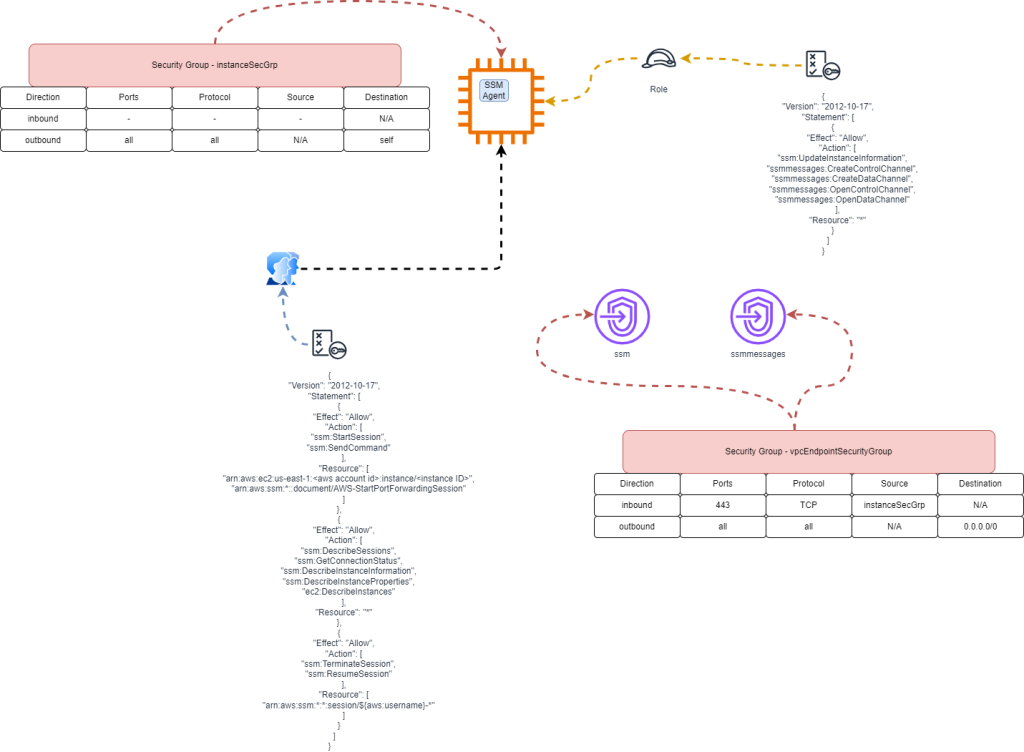
Players
- IAM user with the console access, CLI credentials, and policy enabled for SSM
- EC2 with SSM role and security group for SSM traffic outbound
- VPC Endpoints with security group for SSM traffic outbound and EC2 traffic inbound
- VPC with two private subnets without any Internet traffic inbound or outbound
For private subnets without internet access, you MUST create VPC endpoints for both ssm and ssmmessages services. Without these endpoints, the SSM agent cannot communicate with the Systems Manager service.
VPC with Two Private Subnets
The VPC is a standard /16 with two private /24 subnets in different AZs. enable_dns_support and enable_dns_hostnames are both true, that part is non-negotiable, the SSM agent resolves the endpoint DNS names through VPC-provided DNS and the connection silently fails without it. Neither subnet maps a public IP on launch.
IAM User with Policy
I create a dedicated IAM user with console access and an access key for CLI use. The inline policy splits permissions into three blocks:
- Session start,
ssm:StartSessionandssm:SendCommandscoped to specific instance ARNs plus theAWS-StartPortForwardingSessiondocument - Describe / lookup, the various
ssm:Describe*andec2:DescribeInstancesactions on*so the console can list what's available - Session control,
ssm:TerminateSessionandssm:ResumeSessionscoped toarn:aws:ssm:*:*:session/${aws:username}-*so a user can only kill their own sessions
The interpolation in the last block (${aws:username}) is the part worth knowing about, it prevents one user terminating another user's session even though they share the same policy template.
Restrict the ssm:StartSession resource to specific instance IDs or use tags with conditions to limit which instances users can connect to. This follows the principle of least privilege.
EC2 Role with Policy
The EC2 needs an instance profile whose role can assume ec2.amazonaws.com and has these five actions on *: ssm:UpdateInstanceInformation, plus the four ssmmessages verbs (CreateControlChannel, CreateDataChannel, OpenControlChannel, OpenDataChannel). That's the minimum to register and hold a session. Skip the AmazonSSMManagedInstanceCore managed policy if you want tighter scoping, those five actions are what it actually needs.
Security Group for EC2
The EC2 sits in a self-referencing security group with one egress rule allowing all protocols to its own SG ID. No ingress. This is the cleanest way to say "this SG can talk to other things in this SG and nothing else."
Security Group for VPC Endpoints
The VPC endpoints sit in their own security group that allows ingress on 443/tcp only from the EC2's self-referencing SG, and egress to anywhere. SG-to-SG references like this are what let you avoid hardcoding CIDR blocks, and they automatically follow the EC2 around if you re-launch it.
VPC Endpoint 1 - SSM
resource "aws_vpc_endpoint" "ssm_endpoint" {
  vpc_id            = aws_vpc.main.id
  service_name      = "com.amazonaws.us-east-1.ssm"
  vpc_endpoint_type = "Interface"

  subnet_ids = [
    aws_subnet.private_a.id,
    aws_subnet.private_b.id
  ]

  security_group_ids = [
    aws_security_group.https_from_sg.id
  ]

  private_dns_enabled = true

  tags = {
    Name = "ssm-endpoint"
  }
}
VPC Endpoint 2 - SSM Messages
The ssmmessages endpoint is an exact copy of the ssm endpoint with the service name swapped to com.amazonaws.us-east-1.ssmmessages. Same subnets, same SG, private_dns_enabled = true. You need both endpoints, not one or the other.
EC2 with Role and Security Group
resource "aws_instance" "ssm_ec2" {
  ami                         = "ami-02e3d076cbd5c28fa"
  instance_type               = "t3.micro"
  subnet_id                   = aws_subnet.private_a.id
  vpc_security_group_ids      = [aws_security_group.self_referencing_sg.id]
  iam_instance_profile        = aws_iam_instance_profile.ec2_ssm_instance_profile.name
  associate_public_ip_address = false
  key_name                    = null

  tags = {
    Name = "ssm-managed-ec2"
  }
}
Connecting to the EC2 - AWS Console
Once you run the terraform script to create all the players, you will be able to login as the user that was created, go to EC2 console, and Connect to PowerShell of the EC2 through SSM Session Manager, all without a jumpbox/bastion host.
Connecting to the EC2 - Outside of AWS Console
From outside of AWS, you can connect to the same private EC2 without the need for a jumpbox/bastion host provided you install the Session Manager plugin located here: https://docs.aws.amazon.com/systems-manager/latest/userguide/session-manager-working-with-install-plugin.html
Once installed, you can obtain the EC2 Instance ID and run the command to connect to the EC2:
aws ssm start-session --target i-06547163d9f33d195Troubleshooting
- Instance not showing in Session Manager - Verify the IAM instance profile is attached to the EC2. Check that the SSM agent is running with
sudo systemctl status amazon-ssm-agent(Linux) orGet-Service AmazonSSMAgent(Windows). - "Unable to start session" error - Ensure VPC endpoints for both
ssmandssmmessagesexist. Verify security groups allow HTTPS (443) traffic between EC2 and endpoints. - SSM agent not connecting - Check that
enable_dns_supportandenable_dns_hostnamesare enabled on the VPC. The agent needs to resolve the endpoint DNS names. - Permission denied when starting session - Verify the IAM user/role has
ssm:StartSessionpermission for the specific instance ARN or wildcard. - Session times out immediately - Check the EC2 instance's IAM role has the required
ssmmessages:*permissions. The instance needs these to establish the control and data channels. - Port forwarding not working - Ensure the IAM policy includes permission for the
AWS-StartPortForwardingSessiondocument. Verify the target port is listening on the EC2.
Conclusion
AWS Systems Manager Session Manager is a powerful tool that provides secure, auditable, and convenient access to your EC2 instances without the need for SSH or RDP. By eliminating the need to open inbound ports or manage SSH keys, it significantly reduces your attack surface and simplifies operations.
Whether you're managing a large fleet of Linux or Windows instances, Session Manager ensures compliance and security by integrating smoothly with IAM for access control and CloudWatch or S3 for session logging.
Incorporating Session Manager into your infrastructure is a best practice for modern cloud environments, especially for organizations focused on security, automation, and operational efficiency.
Bonus - Port Forwarding
If you rather not connect to a PowerShell on the EC2, you can set up port forwarding where you can use remote desktop protocol (for Windows) to connect to the EC2:
aws ssm start-session --target i-06547163d9f33d195 --document-name AWS-StartPortForwardingSession --parameters portNumber="3389",localPortNumber="49225"The above:
- Uses the Port Forwarding document from AWS to initiate the port forwarding
- Uses your machine's local port of 49225 (make sure this is free)
- Uses the default RDP port of 3389 on the remote EC2 to marry the local port you defined above
- Allows you to use Remote Desktop Protocol (on port 49225) to connect to the remote EC2 to get a full desktop experience
Want Help With This?
If you're working on something similar and want a second set of eyes, or you'd like to talk through how this applies to your environment, reach out via the contact form. Happy to help.