Replicate S3 data between AWS accounts by: (1) enabling versioning on both buckets, (2) creating an IAM role in the source account with read/write permissions, (3) adding a bucket policy on the destination to trust that role, and (4) creating a replication rule. New objects replicate automatically; use S3 Batch Replication for existing objects.
Introduction
Need to replicate S3 data between AWS accounts? Whether you're setting up a disaster recovery solution, centralizing logs from multiple accounts, or meeting compliance requirements for data redundancy, S3 Cross-Account Replication is the answer.
Cross-account replication can seem complex at first - you're dealing with IAM roles, bucket policies, and trust relationships spanning two separate AWS accounts. But once you understand the flow, it's straightforward to implement and incredibly reliable.
In this guide, I'll walk you through the complete setup process: enabling versioning, creating the IAM role and policies in the source account, configuring the destination bucket policy, setting up the replication rule, and testing everything works.
Architecture Overview
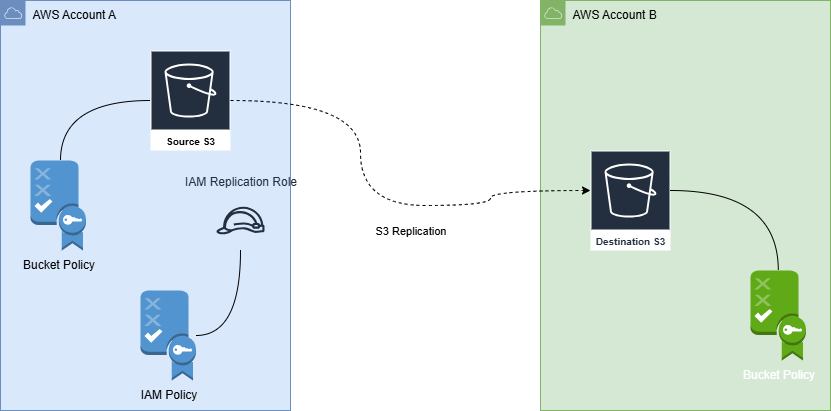
The key components are:
- Source Bucket (Account A) - Where your original objects live, must have versioning enabled
- Destination Bucket (Account B) - Where replicated objects will be stored, must have versioning enabled
- IAM Role (Account A) - Allows S3 to perform replication on your behalf
- Bucket Policy (Account B) - Grants the source account's role permission to write to the destination
Prerequisites
Before you begin, ensure you have:
- AWS CLI installed and configured with appropriate credentials
- Access to both AWS accounts (source and destination)
- Permissions to create IAM roles and modify S3 bucket policies
- Both buckets already created (we'll enable versioning as part of setup)
Step 1: Enable Versioning on Both Buckets
S3 Replication requires versioning to be enabled on both source and destination buckets. This is a hard requirement - replication simply won't work without it, and you'll get a cryptic error when trying to create the replication rule.
Enable Versioning on Source Bucket (Account A)
aws s3api put-bucket-versioning \
  --bucket YOUR-SOURCE-BUCKET-NAME \
  --versioning-configuration Status=Enabled \
  --profile source-account-profile
Enable Versioning on Destination Bucket (Account B)
aws s3api put-bucket-versioning \
  --bucket YOUR-DESTINATION-BUCKET-NAME \
  --versioning-configuration Status=Enabled \
  --profile destination-account-profile
Verify Versioning Status
# Check source bucket
aws s3api get-bucket-versioning \
  --bucket YOUR-SOURCE-BUCKET-NAME \
  --profile source-account-profile

# Check destination bucket
aws s3api get-bucket-versioning \
  --bucket YOUR-DESTINATION-BUCKET-NAME \
  --profile destination-account-profile
Expected output:
{
    "Status": "Enabled"
}
Step 2: Create IAM Role for Replication (Account A)
This IAM role allows S3 to perform replication on your behalf. It needs a trust policy that allows the S3 service to assume it.
Create the Trust Policy
The trust policy is a standard one-statement document: Effect: Allow, Principal.Service: s3.amazonaws.com, Action: sts:AssumeRole. Save it as trust-policy.json so the next CLI call can reference it.
Create the IAM Role
aws iam create-role \
  --role-name S3CrossAccountReplicationRole \
  --assume-role-policy-document file://trust-policy.json \
  --description "Role for S3 cross-account replication" \
--profile source-account-profileSave the Role ARN from the output immediately - you'll need it for both the replication configuration and the destination bucket policy. It looks like: arn:aws:iam::111122223333:role/S3CrossAccountReplicationRole
Step 3: Create and Attach IAM Permissions Policy (Account A)
The replication role needs permissions to read from the source bucket and write to the destination bucket.
Create the Permissions Policy
The permissions policy needs three statements: source bucket access (s3:GetReplicationConfiguration and s3:ListBucket on the bucket ARN), source object access (the version-aware reads like s3:GetObjectVersionForReplication, GetObjectVersionAcl, GetObjectVersionTagging on bucket/*), and destination object writes (s3:ReplicateObject, ReplicateDelete, ReplicateTags on the destination bucket/*). The version-aware actions are the ones people miss when they copy a generic S3 policy and wonder why replication does nothing.
Attach the Policy to the Role
aws iam put-role-policy \
  --role-name S3CrossAccountReplicationRole \
  --policy-name S3ReplicationPermissionsPolicy \
  --policy-document file://replication-permissions-policy.json \
  --profile source-account-profile
Step 4: Configure Destination Bucket Policy (Account B)
This is where most cross-account replication setups fail. The destination bucket must explicitly allow the source account's replication role to write objects. If you skip this or get the ARN wrong, replication will silently fail with AccessDenied.
Create the Bucket Policy
The destination bucket policy is two statements, both with Principal.AWS set to the source account's replication role ARN. The first statement allows the object-level replication actions (s3:ReplicateObject, ReplicateDelete, ReplicateTags, and importantly s3:ObjectOwnerOverrideToBucketOwner) on the destination bucket's /*. The second allows s3:GetBucketVersioning and s3:PutBucketVersioning on the bucket itself so the role can confirm versioning is on. If ObjectOwnerOverrideToBucketOwner is missing here, replicated objects land in the destination but the destination account cannot read them.
Apply the Bucket Policy
aws s3api put-bucket-policy \
  --bucket YOUR-DESTINATION-BUCKET-NAME \
  --policy file://destination-bucket-policy.json \
  --profile destination-account-profile
Step 5: Create Replication Configuration (Account A)
Now we create the actual replication rule on the source bucket.
Create the Replication Configuration
The replication config has a top-level Role (the source-account role ARN) and one or more Rules. Each rule needs an ID, Status: Enabled, a Priority, a Filter (empty object replicates everything, or use a prefix/tag filter), a Destination block with the bucket ARN, the destination Account, and an AccessControlTranslation with Owner: Destination. Add DeleteMarkerReplication with Status: Enabled if you want delete markers to propagate.
The AccessControlTranslation setting is key for cross-account replication. Without it, replicated objects would be owned by the source account, making them inaccessible to the destination account. Setting Owner: Destination ensures the destination account owns the replicated objects.
Apply the Replication Configuration
aws s3api put-bucket-replication \
  --bucket YOUR-SOURCE-BUCKET-NAME \
  --replication-configuration file://replication-configuration.json \
  --profile source-account-profile
Step 6: Test the Replication
Let's verify everything works by uploading a test file.
Upload a Test File
echo "This is a test file for replication" > test-replication.txt

aws s3 cp test-replication.txt s3://YOUR-SOURCE-BUCKET-NAME/ \
  --profile source-account-profile
Check Replication Status
Wait 1-2 minutes, then verify the file appears in the destination:
aws s3 ls s3://YOUR-DESTINATION-BUCKET-NAME/ \
  --profile destination-account-profile
Check Object Replication Status
aws s3api head-object \
  --bucket YOUR-SOURCE-BUCKET-NAME \
  --key test-replication.txt \
  --profile source-account-profile
Look for the ReplicationStatus field:
| Status | Meaning |
|---|---|
PENDING |
Replication is in progress |
COMPLETED |
Object has been replicated successfully |
FAILED |
Replication failed - check permissions |
REPLICA |
Object is a replica (seen on destination) |
Step 7: Replicate Existing Objects
S3 Replication only applies to new objects uploaded after the rule is enabled. Existing objects in your bucket are NOT automatically replicated. You must use one of the methods below to replicate them.
Option 1: S3 Batch Replication (Recommended)
- Go to Amazon S3 Console
- Navigate to your source bucket
- Go to Management tab → Replication rules
- Select your replication rule
- Click Actions → Replicate existing objects
- Follow the wizard to create a Batch Operations job
Option 2: AWS CLI Sync (For Smaller Buckets)
aws s3 sync s3://YOUR-SOURCE-BUCKET-NAME s3://YOUR-DESTINATION-BUCKET-NAME \
  --acl bucket-owner-full-control \
--profile source-account-profileFor buckets with millions of objects, use S3 Batch Replication - it's designed for scale and provides progress tracking. The CLI sync works well for buckets under 100,000 objects.
Optional Configurations
Filter Replication by Prefix
To replicate only objects with a specific prefix:
"Filter": {
  "Prefix": "logs/"
}
Filter by Tags
To replicate only objects with specific tags:
"Filter": {
  "Tag": {
    "Key": "replicate",
    "Value": "true"
  }
}
KMS Encryption Support
If your objects are encrypted with KMS, add a statement to the IAM role policy granting kms:Decrypt on the source key and kms:GenerateDataKey on the destination key. Then add an EncryptionConfiguration block to the rule's Destination with ReplicaKmsKeyID set to the destination KMS key ARN. The destination key's own key policy also needs to allow the source-account role as a key user, otherwise the role decrypts the source object fine but cannot encrypt the replica.
Troubleshooting
Common issues and their solutions:
- Objects not replicating - Verify versioning is enabled on both buckets. Check IAM role permissions include all required actions. Confirm the destination bucket policy trusts the exact role ARN.
AccessDeniederrors - The role ARN in the destination bucket policy must match exactly. Check for typos in account IDs. Ensures3:ObjectOwnerOverrideToBucketOwneris included if usingAccessControlTranslation.- Replication status shows
FAILED- Check CloudTrail logs for detailed error messages. Common causes: KMS key permissions missing, destination bucket doesn't exist, or bucket policy is malformed. - Existing objects not replicated - This is expected behavior. Use S3 Batch Replication or
aws s3 syncto replicate existing objects. - "Versioning must be enabled" error - Run
get-bucket-versioningon both buckets. If status is null or Suspended, versioning isn't enabled. - Replicated objects inaccessible in destination account - You're missing
AccessControlTranslationin the replication config. Without it, replicated objects are owned by the source account.
Check CloudTrail for Errors
aws cloudtrail lookup-events \
  --lookup-attributes AttributeKey=EventName,AttributeValue=ReplicateObject \
  --start-time "2026-01-01T00:00:00Z" \
  --profile source-account-profile
Quick Reference: Placeholders
| Placeholder | Description | Example |
|---|---|---|
YOUR-SOURCE-BUCKET-NAME |
Name of source S3 bucket | my-app-data-prod |
YOUR-DESTINATION-BUCKET-NAME |
Name of destination S3 bucket | my-app-data-backup |
SOURCE-ACCOUNT-ID |
12-digit AWS account ID (source) | 111122223333 |
DESTINATION-ACCOUNT-ID |
12-digit AWS account ID (destination) | 444455556666 |
source-account-profile |
AWS CLI profile for source account | company-prod |
destination-account-profile |
AWS CLI profile for destination account | company-backup |
Cleanup
To remove the replication configuration:
aws s3api delete-bucket-replication \
  --bucket YOUR-SOURCE-BUCKET-NAME \
  --profile source-account-profile
To delete the IAM role and policy:
# Delete the inline policy first
aws iam delete-role-policy \
  --role-name S3CrossAccountReplicationRole \
  --policy-name S3ReplicationPermissionsPolicy \
  --profile source-account-profile

# Then delete the role
aws iam delete-role \
  --role-name S3CrossAccountReplicationRole \
  --profile source-account-profile
Conclusion
S3 Cross-Account Replication is a powerful feature for building resilient, multi-account architectures. Once configured, it runs automatically in the background, keeping your destination bucket in sync with minimal latency (typically under 15 minutes for most objects).
The key things to remember:
- Versioning must be enabled on both buckets - no exceptions
- The IAM role needs read access to source and write access to destination
- The destination bucket policy is the critical cross-account trust piece
- New objects replicate automatically; existing objects need Batch Replication
- Always use
AccessControlTranslationso the destination account owns replicated objects
Whether you're replicating for disaster recovery, compliance, or data aggregation, this setup gives you a reliable, hands-off solution that scales with your data.
Want Help With This?
If you're working on something similar and want a second set of eyes, or you'd like to talk through how this applies to your environment, reach out via the contact form. Happy to help.