Fully automate a Windows two-tier PKI deployment on AWS using Terraform for infrastructure provisioning and Ansible for certificate workflow. Deploy a Domain Controller, Standalone Root CA, and Standalone Subordinate CA in ~22 minutes. Key insight: use -f -Silent flags with certutil commands and certutil -view instead of certreq -Retrieve for reliable WinRM automation.
Introduction
Building a Public Key Infrastructure (PKI) from scratch involves many manual steps - provisioning servers, configuring Active Directory, installing Certificate Services, and managing the certificate signing workflow between CAs. This post walks through how I fully automated a two-tier PKI deployment on AWS using Terraform and Ansible.
Architecture Overview
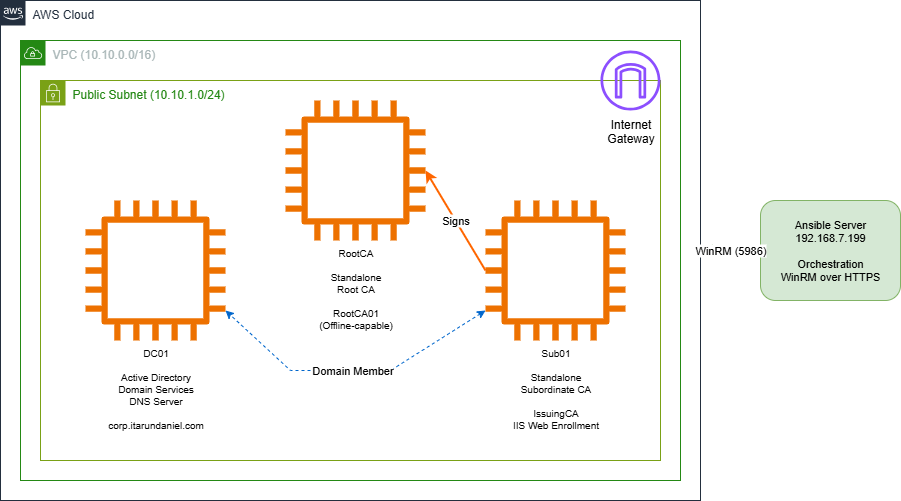
My infrastructure consists of three Windows Server 2019 instances:
- DC01 - Active Directory Domain Controller
- RootCA - Standalone Root Certificate Authority (offline-capable)
- Sub01 - Standalone Subordinate CA (Issuing CA)
The Automation Pipeline
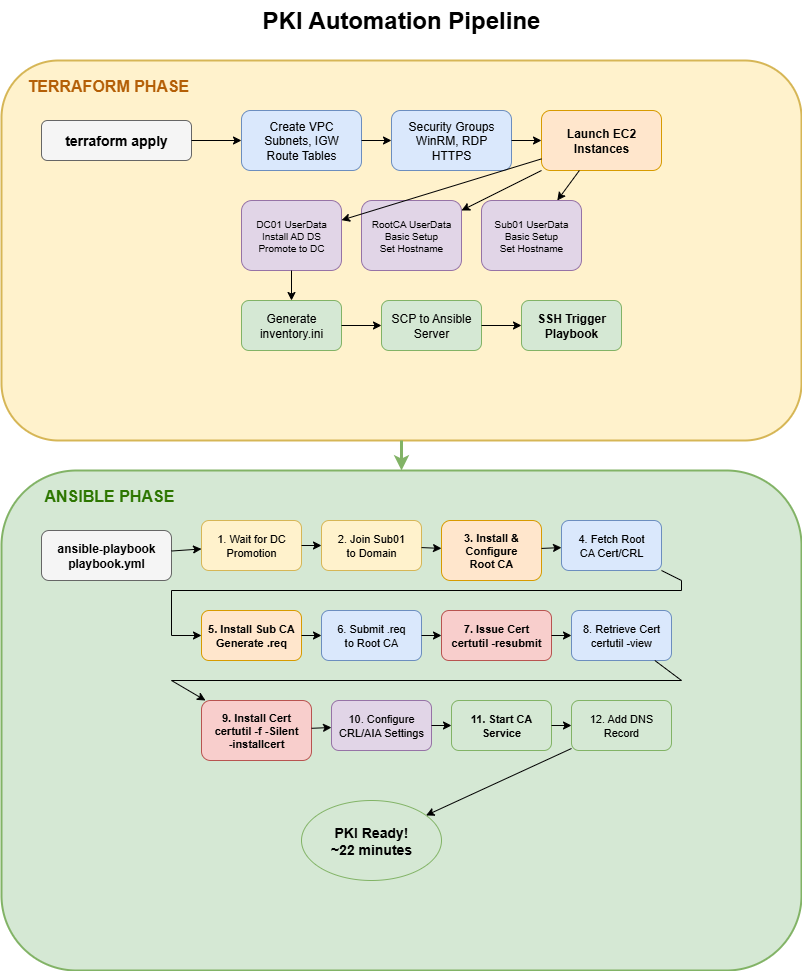
The deployment follows a two-phase approach:
- Terraform - Provisions AWS infrastructure and bootstraps instances
- Ansible - Configures the PKI hierarchy and certificate workflow
Terraform Configuration
Terraform handles the AWS infrastructure provisioning. Key resources include:
Network Infrastructure
A standard aws_vpc with DNS hostnames/support enabled, public subnets with auto-assign public IP, an internet gateway, and security groups opening 5985/5986 (WinRM) and 3389 (RDP) from my admin IP. Nothing exotic.
EC2 Instances with UserData
Three aws_instance resources (DC, RootCA, Sub CA) using the Windows Server 2019 AMI on t3.medium, each with a PowerShell user_data script. The DC's userdata installs AD DS (Install-WindowsFeature AD-Domain-Services) and promotes the forest with Install-ADDSForest. The CA userdata files enable WinRM and pre-stage C:\temp directories for Ansible.
Dynamic Inventory Generation
I use a local_file resource with a heredoc to write ansible/inventory.ini at apply time. Groups are [domain_controller], [rootca], [sub01], populated with each instance's public_ip, plus [all:vars] for private IPs the playbook needs. This means Ansible never sees stale hosts.
Ansible Playbook Structure
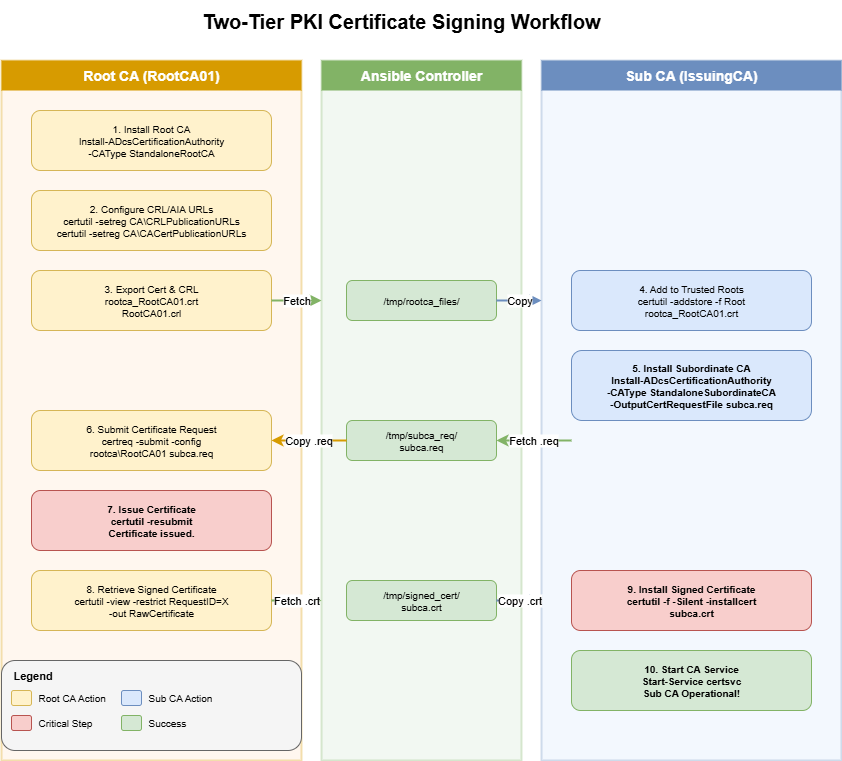
The Ansible playbook orchestrates the PKI configuration through 9 plays:
Key Ansible Tasks
Installing the Root CA:
- name: Configure Standalone Root CA
  ansible.windows.win_shell: |
    Install-ADcsCertificationAuthority `
      -CACommonName "RootCA01" `
      -CAType StandaloneRootCA `
      -CryptoProviderName "RSA#Microsoft Software Key Storage Provider" `
      -HashAlgorithmName SHA256 `
      -KeyLength 2048 `
      -ValidityPeriod Years `
      -ValidityPeriodUnits 20 `
      -Force
Installing the Subordinate CA:
- name: Install Standalone Subordinate CA
  ansible.windows.win_shell: |
    Install-ADcsCertificationAuthority `
      -CACommonName "IssuingCA" `
      -CAType StandaloneSubordinateCA `
      -OutputCertRequestFile "C:\temp\subca.req" `
      -OverwriteExistingKey `
      -Force
Signing the Sub CA certificate:
- name: Resubmit and issue the certificate
  ansible.windows.win_shell: |
    $requestId = (Get-Content "C:/temp/subca_req/request_id.txt" -Raw).Trim()
    certutil -resubmit $requestId
Challenges & Solutions
Challenge 1: certutil -installcert Hangs via WinRM
Problem: The certutil -installcert command hangs indefinitely when executed via WinRM/Ansible because it waits for interactive confirmation.
Solution: Use the -f (force) and -Silent flags:
- name: Install the signed certificate
  ansible.windows.win_shell: |
certutil -f -Silent -installcert "C:/temp/ca_files/subca.crt"Always use -f -Silent with certutil commands in automation. Without these flags, certutil prompts for user confirmation which causes WinRM sessions to hang indefinitely.
Challenge 2: certreq -Retrieve Also Hangs
Problem: Similar to installcert, certreq -Retrieve hangs via WinRM.
Solution: Use certutil -view to extract the certificate instead:
- name: Retrieve certificate
  ansible.windows.win_shell: |
    certutil -config "rootca\RootCA01" -view `
      -restrict "RequestID=$requestId" `
      -out RawCertificate | Out-File subca_raw.txt

    # Extract PEM certificate from output
    $raw = Get-Content subca_raw.txt -Raw
    $match = [regex]::Match($raw, "-----BEGIN CERTIFICATE-----.+-----END CERTIFICATE-----")
$match.Value | Out-File subca.crt -Encoding ASCIIThe certreq -Retrieve command is designed for interactive use. For automation, always use certutil -view with the -out RawCertificate flag to extract certificates non-interactively.
Challenge 3: Enterprise CA vs Standalone CA
Problem: Enterprise Subordinate CA requires AD DS integration and can fail with ERROR_DS_RANGE_CONSTRAINT errors.
Solution: Use Standalone Subordinate CA instead:
# Instead of EnterpriseSubordinateCA
-CAType StandaloneSubordinateCA
Challenge 4: NTLM Credential Delegation
Problem: Commands like certutil -dspublish fail via WinRM due to NTLM not supporting credential delegation to LDAP.
Solution: Run AD-dependent commands from the DC itself, or add the Root CA certificate to trusted roots locally instead of publishing to AD.
Final Result
After running terraform apply, the entire infrastructure is deployed and configured automatically in approximately 22 minutes:
PLAY RECAP *******************************************************************
dc01       : ok=6    changed=1    failed=0    ignored=1
rootca     : ok=24   changed=20   failed=0    ignored=0
sub01      : ok=29   changed=22   failed=0    ignored=2

Finished at Sun Feb  1 07:22:34 PM EST 2026
The Sub CA is fully operational:
Sub CA is running successfully
CA name: IssuingCA
CA type: 4 -- Stand-alone Subordinate CA
CA cert[0]: 3 -- Valid
CRL[0]: 3 -- Valid
DNS Name: sub01.corp.itarundaniel.com
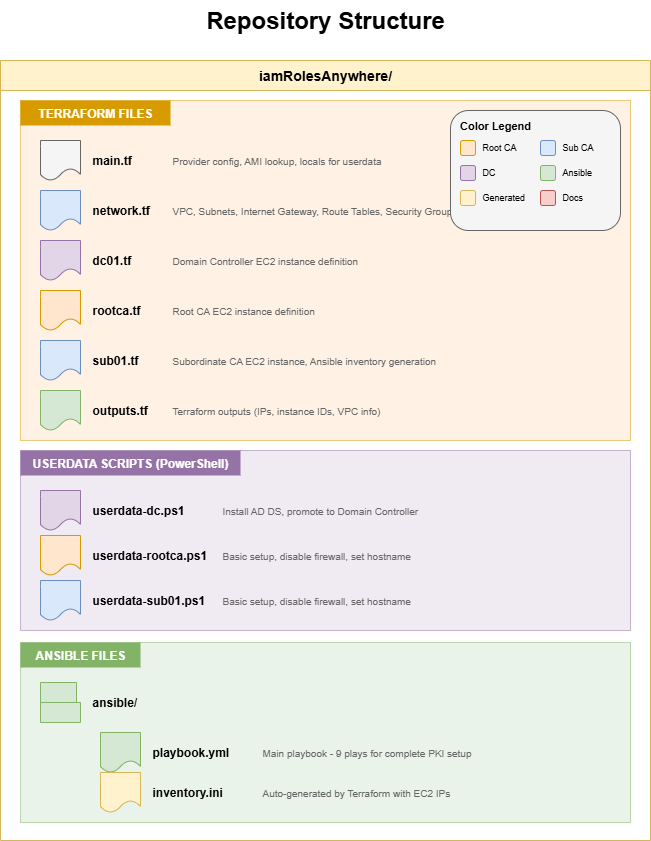
Repository Structure
Conclusion
Automating PKI deployment with Terraform and Ansible provides:
- Repeatability - Consistent deployments every time
- Speed - Full PKI in ~22 minutes vs hours manually
- Documentation as Code - Infrastructure is self-documenting
- Version Control - Track changes over time
The key lessons learned:
- Windows Certificate Services commands often require special flags (
-f,-Silent) for non-interactive execution - WinRM has limitations with credential delegation - plan accordingly
- Standalone CAs are easier to automate than Enterprise CAs
- Using
certutil -viewis more reliable thancertreq -Retrievefor automation
This infrastructure serves as the foundation for AWS IAM Roles Anywhere, enabling on-premises workloads to obtain temporary AWS credentials using X.509 certificates issued by this PKI.
Want Help With This?
If you're working on something similar and want a second set of eyes, or you'd like to talk through how this applies to your environment, reach out via the contact form. Happy to help.