Amazon WorkSpaces Multi-Region Resilience (MRR) enables automatic failover to standby WorkSpaces in a secondary region with less than 30-minute RTO. Users connect via FQDN registration codes, and Route 53 health checks trigger DNS failover during outages. Data replication (every 12 hours) keeps user data synchronized. MRR is available in US East, US West, EU Frankfurt, and EU Ireland.
Introduction
Business continuity for virtual desktop infrastructure is no longer optional. When your primary AWS region experiences an outage, your users need to continue working - ideally without even noticing a disruption. Amazon WorkSpaces Multi-Region Resilience (MRR) addresses this challenge by enabling standby WorkSpaces in a secondary region that users can smoothly failover to.
This guide covers the architecture, implementation steps, and best practices for setting up multi-region disaster recovery for Amazon WorkSpaces Personal.
Architecture Overview
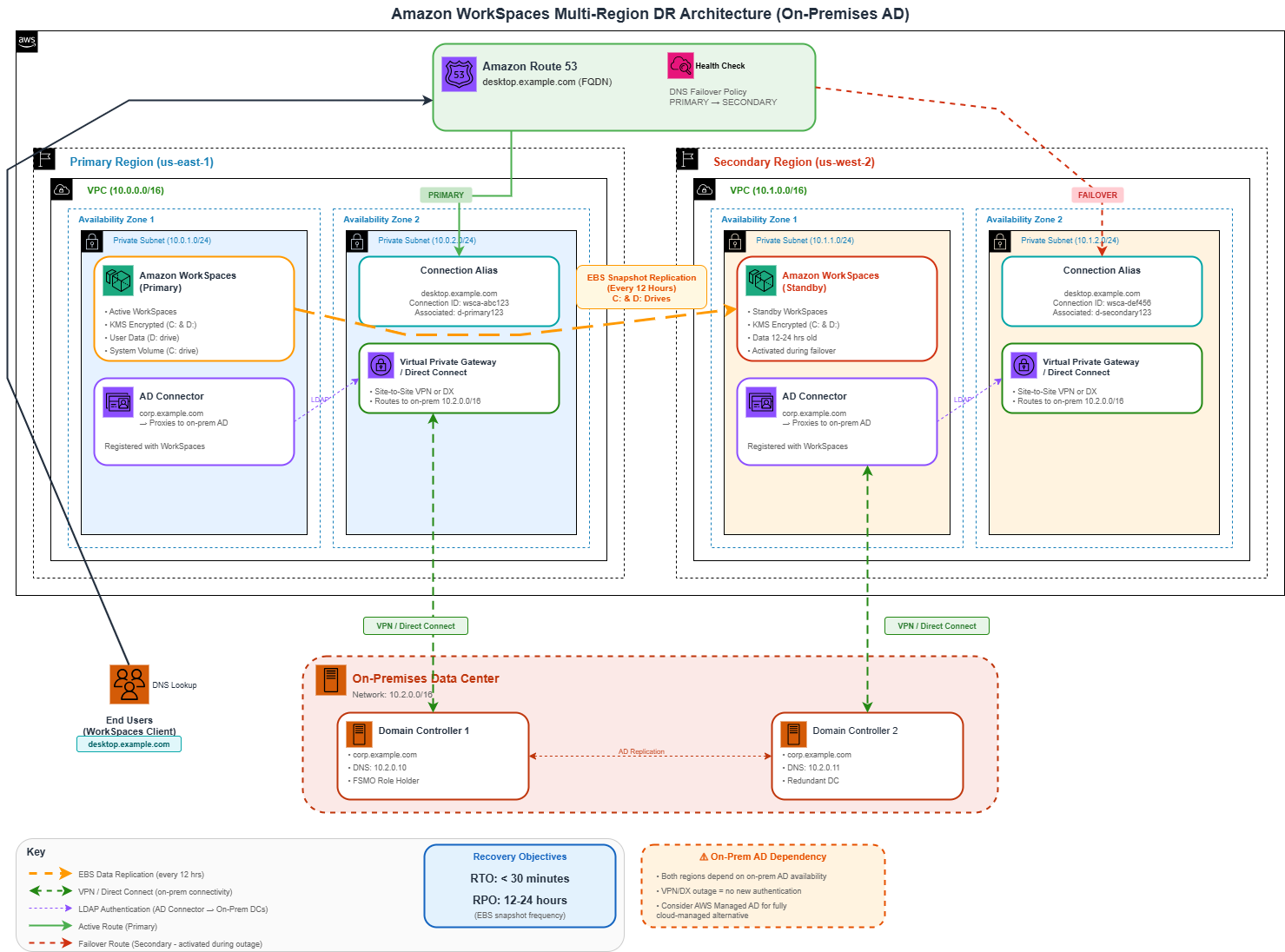
The multi-region disaster recovery architecture for Amazon WorkSpaces consists of several key components working together:
- Primary WorkSpaces - Active WorkSpaces in your primary region where users work daily
- Standby WorkSpaces - Provisioned WorkSpaces in a secondary region, ready to activate during failover
- Cross-Region Data Replication - EBS snapshots replicated every 12 hours from primary to secondary
- Connection Aliases (FQDN) - Domain-based registration codes that enable smooth redirection
- Route 53 Health Checks - Monitor primary region availability and trigger DNS failover
- Active Directory - Synchronized directories in both regions (via AD Connector)
Note: The diagram above uses a Virtual Private Gateway (VGW) for on-premises connectivity for simplicity. In production, you would typically use AWS Transit Gateway for centralized routing across multiple VPCs and regions.
How Failover Works
- Route 53 health check detects primary region failure
- DNS failover policy updates to point to secondary region
- Users see connection error and are prompted to log in again
- Using FQDN registration code, users are redirected to standby WorkSpaces
- Users access their data (12-24 hours old) and continue working
Amazon WorkSpaces Multi-Region Resilience offers less than 30-minute RTO using the standby WorkSpace configuration.
Prerequisites
Before implementing MRR, ensure you have the following in place:
Directory Requirements
- WorkSpaces created in primary region first
- User directories in both primary and secondary regions with identical usernames
- AD Connector pointing to the same Active Directory in each region
- Primary and secondary Active Directories synchronized for FQDN, OU, and user SID
AWS Managed Microsoft AD multi-region replication is NOT supported with Amazon WorkSpaces. Only the primary region directory can be registered. Use AD Connector instead.
Service Quotas & Encryption
- Request service quota increase (default limit for standby WorkSpaces is 0)
- Use customer-managed KMS keys to encrypt both primary and standby WorkSpaces
- Update networking drivers (ENA, NVMe, PV drivers) at least every 6 months
Client Requirements
- WorkSpaces client version 3.0.9 or later (Linux, macOS, Windows)
- Web Access is also supported
Supported Regions and WorkSpace Types
Supported Regions
| Region | Region Code |
|---|---|
| US East (N. Virginia) | us-east-1 |
| US West (Oregon) | us-west-2 |
| Europe (Frankfurt) | eu-central-1 |
| Europe (Ireland) | eu-west-1 |
Supported vs Unsupported WorkSpace Types
| Supported | Not Supported |
|---|---|
| Windows WorkSpaces | Amazon Linux 2, Ubuntu, RHEL |
| Bring Your Own License (BYOL) | GeneralPurpose.4xlarge, 8xlarge |
| Standard bundle types | GPU-enabled (Graphics, GraphicsPro) |
Implementation Steps
Step 1: Set Up User Directories
Create AD Connector directories in both primary and secondary regions, pointing to the same on-prem Active Directory. I use aws ds connect-directory in each region with matching domain name, short name, and DNS IPs, but with VPC/subnet IDs scoped to that region. The trick is keeping the customer DNS IPs reachable from both regions (Transit Gateway or VGW routing).
Step 2: Create Primary WorkSpaces
Launch WorkSpaces for users in the primary region through the console or CLI:
aws workspaces create-workspaces \
    --workspaces \
        DirectoryId=d-1234567890,UserName=jsmith,BundleId=wsb-abcd1234,VolumeEncryptionKey=arn:aws:kms:us-east-1:123456789012:key/mrk-xxx \
    --region us-east-1
Step 3: Create Standby WorkSpaces
- Open the WorkSpaces console in your primary region
- Select a WorkSpace and choose Actions → Create standby WorkSpace
- Select the secondary region and user directory
- (Optional) Add encryption key and enable data replication
- Review and create
# Using AWS CLI
aws workspaces create-standby-workspaces \
    --standby-workspaces \
        PrimaryWorkspaceId=ws-abc123,DirectoryId=d-secondary123,VolumeEncryptionKey=arn:aws:kms:us-west-2:123456789012:key/mrk-xxx \
    --region us-west-2
Step 4: Create Connection Aliases
Create FQDN-based connection aliases in both regions:
# Primary Region
aws workspaces create-connection-alias \
    --connection-string desktop.example.com \
    --region us-east-1

# Secondary Region (same FQDN)
aws workspaces create-connection-alias \
    --connection-string desktop.example.com \
    --region us-west-2
Step 5: Associate Aliases with Directories
# Primary Region
aws workspaces associate-connection-alias \
    --alias-id wsca-abc123 \
    --resource-id d-primary123 \
    --region us-east-1

# Secondary Region
aws workspaces associate-connection-alias \
    --alias-id wsca-def456 \
    --resource-id d-secondary123 \
    --region us-west-2
Step 6: Configure Route 53 DNS Failover
Create Health Check
aws route53 create-health-check \
    --caller-reference "workspaces-primary-$(date +%s)" \
    --health-check-config \
        Type=CLOUDWATCH_METRIC,\
        Inverted=false,\
        AlarmIdentifier={Region=us-east-1,Name=WorkSpaces-Primary-Health}
Create Failover DNS Records
The DNS setup is a pair of TXT records on the same FQDN (e.g., desktop.example.com), one with Failover: PRIMARY tied to your health check, one with Failover: SECONDARY. The TXT value is the connection identifier you get from the WorkSpaces console. Keep TTL low (60s) so failover propagates fast.
In the WorkSpaces console, go to Account Settings → Cross-Region redirection associations, select your connection alias, and note the Connection identifier under Associated directory.
Step 7: Enable Data Replication
- Go to the primary WorkSpace detail page
- Scroll to the Standby WorkSpace section
- Choose Edit Standby WorkSpace
- Enable data replication and confirm authorization for additional charges
- Click Save
Data Replication Details
| Aspect | Details |
|---|---|
| Frequency | Every 12 hours |
| What's Replicated | System volume (C:) and User volume (D:) |
| Direction | One-way: Primary → Secondary only |
| Snapshot Type | Initial is full; subsequent are incremental |
| Data Currency | 12-24 hours old during failover |
| First Replication | Takes longer (full snapshot) |
Data replication does NOT support AWS Simple AD. Additionally, users can only access data that is 12-24 hours old after failover - any work done just before the outage may not be available on the standby WorkSpace.
Failover and Recovery Process
During Failover
- Health check detects primary region failure
- Route 53 updates DNS to point to secondary region
- Users see: "We can't connect to your WorkSpace. Check your network connection, and then try again."
- Users log in again and are redirected to standby WorkSpaces
- Users access their data (12-24 hours old) and continue working
Post-Failover Recovery
- Users must manually back up any new data created on standby WorkSpace
- Log out of standby WorkSpace
- Wait 15-30 minutes before reconnecting
- Log back in to be redirected to primary region
Route 53 continuously monitors the primary region's health check. When it recovers, traffic automatically redirects back to the primary region.
Key Limitations
| Limitation | Details |
|---|---|
| No Direct Modifications | Cannot directly modify, rebuild, restore, or migrate standby WorkSpaces |
| Data Recency | Only 12-24 hours of data available during failover |
| Concurrent Connections | Don't connect to both primary and standby simultaneously (AD sync issues) |
| Hibernation | Standby WorkSpaces cannot hibernate; unsaved work is lost if stopped |
| Running Mode | FSLogix integration only works with Auto-Stop mode, not Always-On |
Security Best Practices
- Use KMS Encryption - Encrypt both primary and standby WorkSpaces with customer-managed keys
- IAM Least Privilege - Grant only necessary permissions for connection alias management
- Protect FQDN - If discontinuing cross-region redirection, update DNS to remove the FQDN to prevent phishing
- Monitor CloudTrail - Track all WorkSpaces API calls and connection alias changes
Pricing Considerations
- Standby WorkSpaces - Charged at the same rate as primary WorkSpaces (bundle + running hours)
- Data Replication - Additional monthly charges for EBS snapshot storage and cross-region copy
- Route 53 - Health check costs ($0.50-$2.00/month per check) plus DNS query charges
- Data Transfer - Cross-region data transfer charges for snapshot replication
Optimizing User Experience Across Regions
For organizations with users distributed globally, consider these additional optimizations:
- Test Latency - Use the Amazon WorkSpaces Connection Health Check to measure RTT to different regions
- FSLogix CloudCache - Integrate Microsoft FSLogix for user profile data replication across regions
- Network Drives - Recommend users save work to network drives for cross-region accessibility
- Regular Testing - Conduct periodic failover drills to ensure DNS policies and health checks work correctly
Conclusion
Amazon WorkSpaces Multi-Region Resilience provides a robust disaster recovery solution for virtual desktop infrastructure with minimal operational overhead:
- Sub-30-minute RTO with standby WorkSpaces ready to activate
- Smooth user experience using FQDN-based registration codes
- Automated failover through Route 53 health checks and DNS routing
- Data protection with 12-hour snapshot replication
The key to success is proper planning: ensure your Active Directory is synchronized across regions, configure Route 53 health checks correctly, and communicate clearly with users about using FQDN registration codes instead of region-specific codes.
- AWS Documentation: Multi-Region Resilience for WorkSpaces Personal
- AWS Documentation: Cross-Region Redirection for WorkSpaces
- GitHub: Amazon WorkSpaces Disaster Recovery CloudFormation Template
- AWS Blog: Building a Multi-Region Disaster Recovery Environment
- AWS Blog: Advancing Business Continuity with Amazon WorkSpaces Multi-Region Resilience
Want Help With This?
If you're working on something similar and want a second set of eyes, or you'd like to talk through how this applies to your environment, reach out via the contact form. Happy to help.